NV5232E NVR Video Export

Have some questions or having issues with your DVR/NVR(s), Post them here for the mods and other users to assist you with.
Post Reply
dcsang
Posts: 4
Joined: Fri Aug 26, 2022 3:56 pm

NV5232E NVR Video Export

Post by dcsang »

Can someone please point me in the direction of video export instructions for the NV5232E NVR using the web browser interface? The resources I've encountered reference an interface similar to what I have but there are several controls missing. There is no option to set a start/end clip time or visible way to save/export. The playback interface I am on the latest official firmware.

The link below is what I'm referencing, followed by a screenshot of my playback interface after clicking the file list.

https://support.amcrest.com/hc/en-us/ar ... -a-NVR-DVR

Image
User avatar
Revo2Maxx
Site Admin
Posts: 6820
Joined: Sat Jun 15, 2019 3:05 pm

Re: NV5232E NVR Video Export

Post by Revo2Maxx »

Hello and Welcome to the Forum

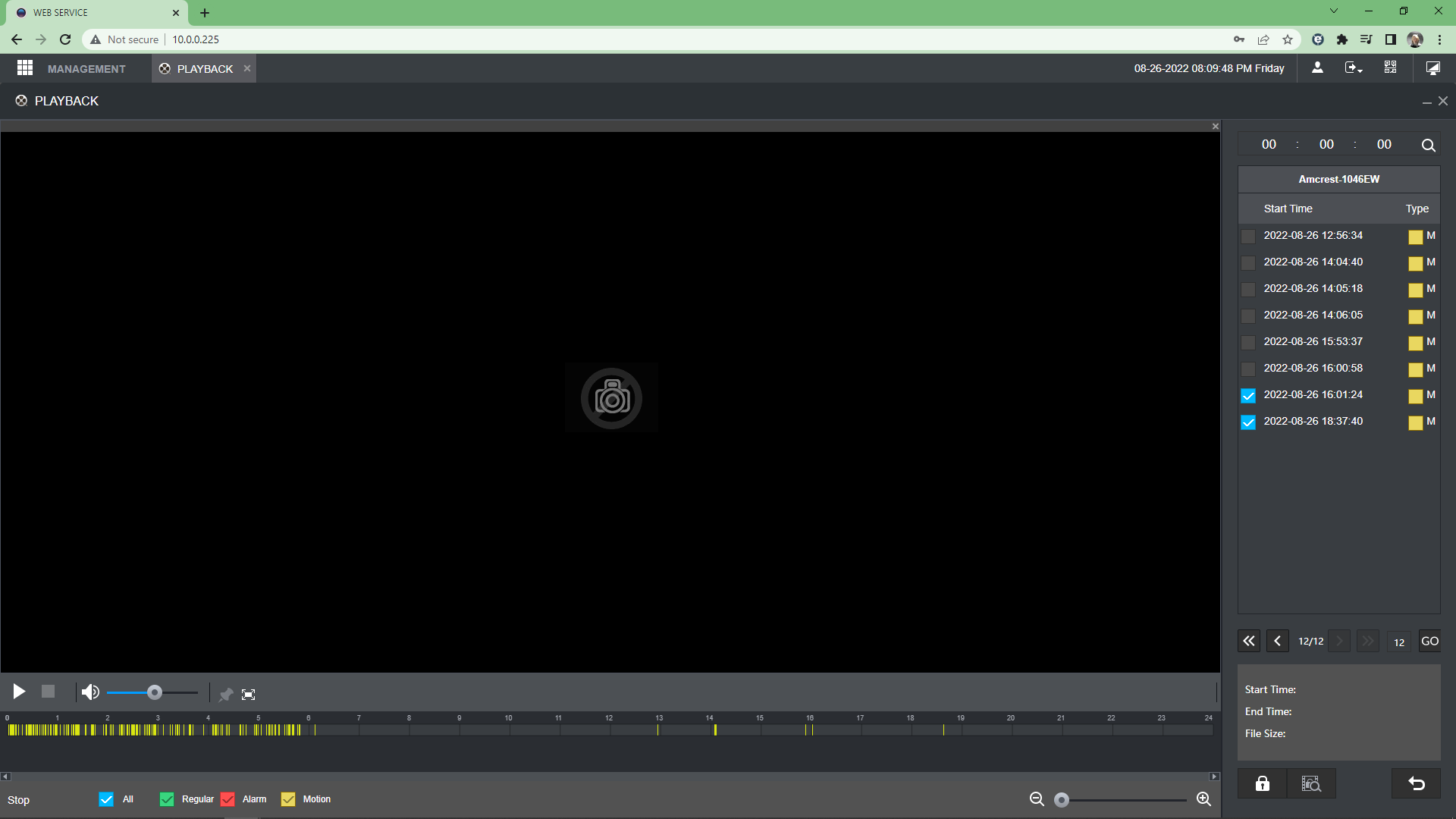
So what I am going to guess I am seeing is your using Chrome or maybe Edge. Either way that happens to be one of the biggest issues I have is there is so many things cut from Chrome and Edge use that makes it very hard to be happy with my NVR's today.

Some do have a Backup feature and some don't so that would be like your Playback area just a Backup button on the main menu area..

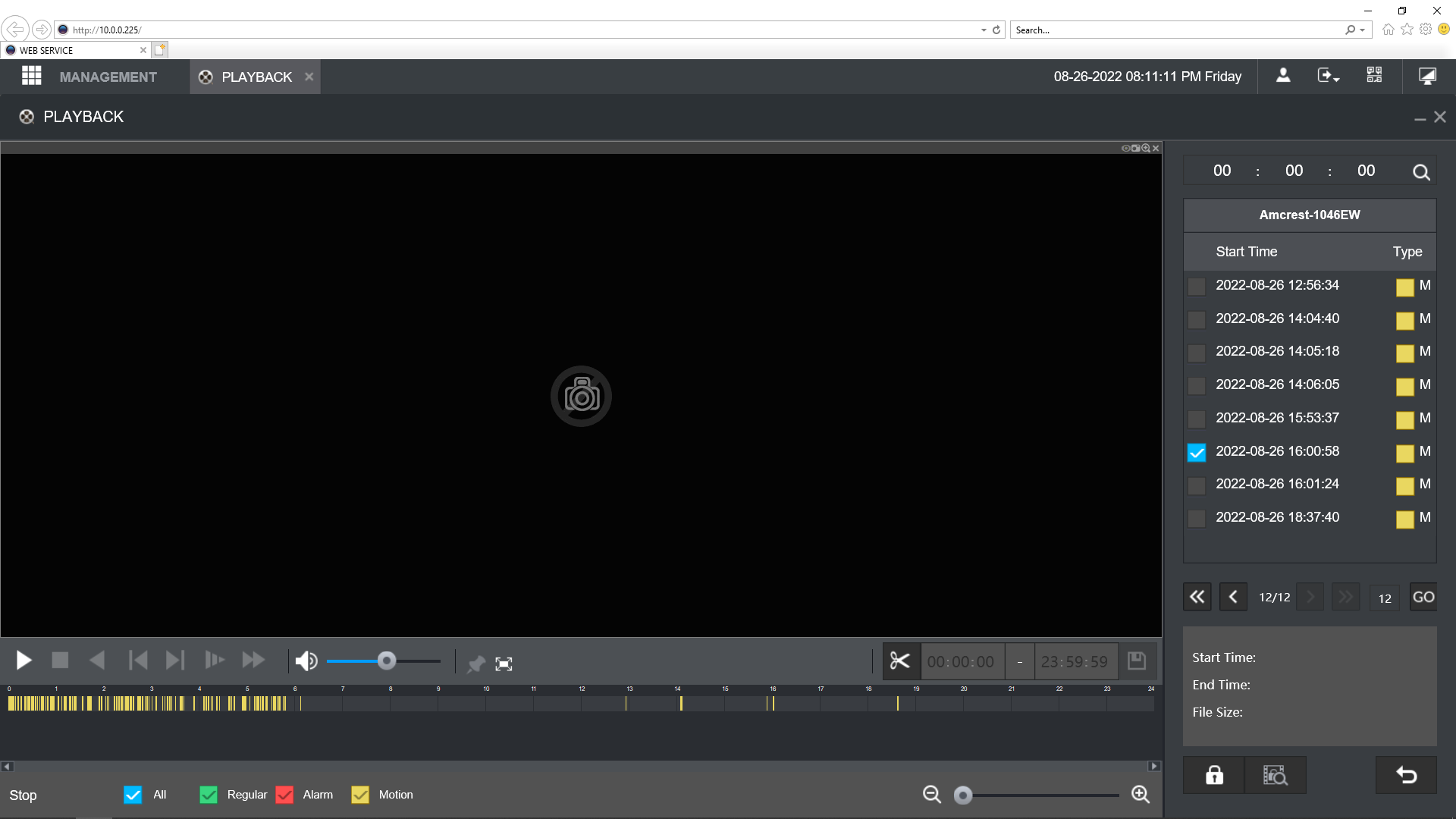
Next what does it leave you with if your system isn't one of them with the option in Chrome or Edge. Well in Edge you can use the Config area of Edge and setup the IP address to work in what is called IE Mode only down side to this is you have to update that option every month by adding it back. Next you can use IE if your computer still has it. That Data from the Post by Amcrest is done in 2018 and was when most Recorders were still working on IE platform so IE still has what is shown in the data of that posting..

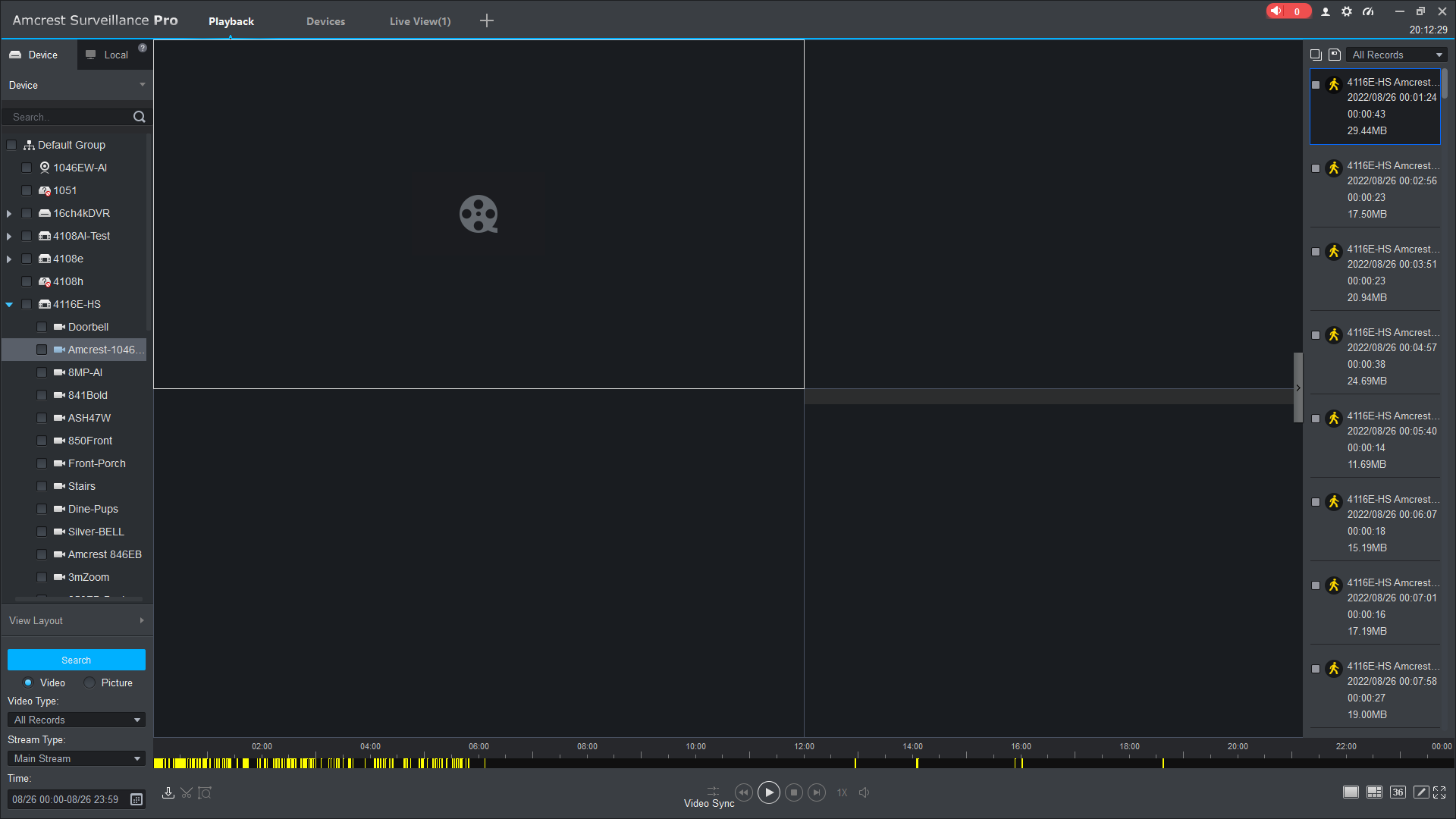
Next and might be a better way is to use ASP. While you don't have to use it for anything more then just being able to Transfer your footage as it can take up CPU and Ram.. Now I have issue of doing things little different then others and at times have more then 1 Live View open while also in Playback and that could be way my CPU and Ram would be higher then others. As long as you keep to 1 playback or live view setup things should be ok..

So option outside of having backup would be as I said. IE Mode in Edge or Chrome and easier to setup in Edge. Use IE and last and for some might be best option is to use ASP...
Mine using Chrome
Screenshot (2764).png
Screenshot (2764).png (70.59 KiB) Viewed 1691 times
Using IE
Screenshot (2765).png
Screenshot (2765).png (104.2 KiB) Viewed 1691 times
and ASP
Screenshot (2766).png
Screenshot (2766).png (111.04 KiB) Viewed 1691 times
Be Safe.
dcsang
Posts: 4
Joined: Fri Aug 26, 2022 3:56 pm

Re: NV5232E NVR Video Export

Post by dcsang »

Thank you! I imagine that ASP provides the best method of playback and export compared to IE and Chrome. I was able to download the video files rather quickly but could not find a way to set specific start and end times for the exported clip. Perhaps I overlooked something, and I will continue to explore the features of ASP. I appreciate the prompt support!
User avatar
Revo2Maxx
Site Admin
Posts: 6820
Joined: Sat Jun 15, 2019 3:05 pm

Re: NV5232E NVR Video Export

Post by Revo2Maxx »

Ok so when your setup for full time recording. and as you see in pictures above my normal recording method is Event however I do record Sub Channel Full time so I again bring in my camera, on a different NVR that is setup as I said for Event and Full time of the Sub Channel. I then click on sub channel for this picture see below I did cover up the picture as that isn't what this post is about it is about how..

Get into the area you want to record, I choose 12 for mine, I then click the Cut tool at the Bottom left next to the seach button area, It will bring up your Default setup time per event most are 1 hour some are less either way you can then move the left or right lines to the area you want to cut then press the Cut tool again and it will bring up the DL window where you want to store the event and then you can drop down and change the type of output file you want and then it will save to that type and area.. See Picture below..
Screenshot (2768).png
Screenshot (2768).png (354.13 KiB) Viewed 1687 times
Be Safe.
Post Reply